CONSOLE FRAME-TIME & HDMI 2.1 TELEMETRY LAB
GTA 6 60 FPS vs. 30 & 40Hz Lab
Why does console open-world simulation hit CPU walls before GPU walls—and why does 40 FPS inside a 120Hz HDMI 2.1 container cut 50% of the millisecond gap to 60 FPS? Test real frame pacing, VRR floors, and OLED persistence on your own screen.
Independent display & frame-time simulator · Runs 100% locally in your browser · Not affiliated with Rockstar Games or Take-Two Interactive
Why Frame Time (ms), Not Raw FPS, Explains the Console 60 FPS Debate
Whenever players search GTA 6 60 FPS for PlayStation 5, PS5 Pro, or Xbox Series X|S, discussions almost always get tangled in raw GPU teraflops while overlooking the two physical numbers that actually govern console responsiveness: CPU frame budget in milliseconds (ms) and display refresh cadence.
Test the live three-lane highway strip at the top of this page first. Notice how human eyes and thumbsticks respond to frame persistence rather than frame counts:
| Target Mode | Frame Time Budget | ms Saved vs. 30 FPS | Required Display Container | Cadence Behavior |
|---|---|---|---|---|
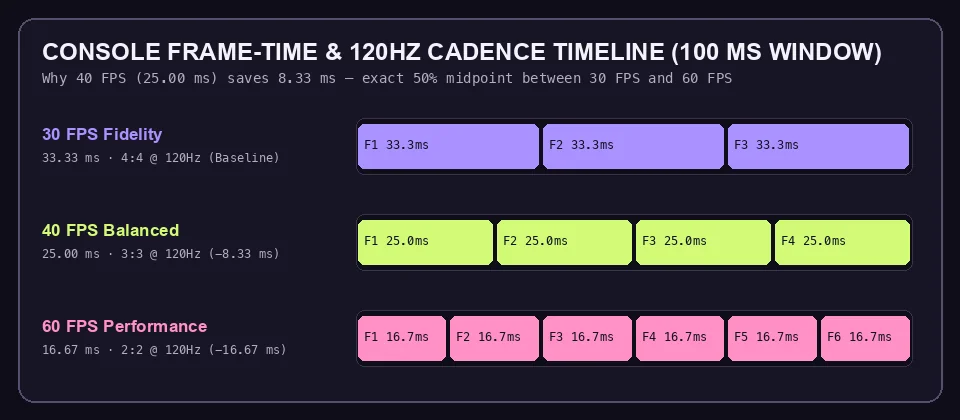
| Locked 30 FPS | 33.33 ms / frame | Baseline (0 ms) | 60Hz or 120Hz HDMI | Even 2:2 (60Hz) or 4:4 (120Hz) pull-down; zero judder, high OLED sample-and-hold persistence |
| Balanced 40 FPS | 25.00 ms / frame | −8.33 ms (50% of 60 FPS gain!) | 120Hz HDMI 2.1 Required | Exact 3:3 pull-down (3 refreshes × 8.33 ms); halves the perceptual gap to 60 FPS |
| Unlocked 48–58 FPS | 17.24–20.83 ms | −12.50 to −16.09 ms | HDMI 2.1 VRR (+ LFC) | Smooth inside VRR window; heavy hitching on fixed 60Hz V-Sync |
| Locked 60 FPS | 16.67 ms / frame | −16.67 ms (100% reference) | Any 60Hz or 120Hz Display | 1:1 (60Hz) or 2:2 (120Hz) gold-standard responsiveness |
Look closely at row two: 30 FPS to 40 FPS (33.33 ms → 25.00 ms) shaves off the exact same 8.33 milliseconds per frame as jumping from 40 FPS all the way to 60 FPS (25.00 ms → 16.67 ms)! That reciprocal relationship (1000 ÷ FPS) is why a rock-solid 120Hz container mode feels dramatically snappier than "10 extra frames" sounds on paper.
CPU Simulation vs. GPU Resolution: Why Upscalers Alone Cannot Guarantee 16.67 ms
A common myth on social feeds claims that dropping internal resolution to 1080p and engaging AI upscaling (PSSR on PS5 Pro or FSR on base consoles) automatically doubles any 30 FPS open-world title to 60 FPS.
In hardware reality, every rendered frame passes through two sequential gates:
- CPU Simulation & Draw-Call Prep: Updating vehicle physics, dense pedestrian AI routines, destructible props, audio occlusion, animation skeletons, and BVH (Bounding Volume Hierarchy) acceleration structures for ray-traced lighting/reflections. Because PS5, PS5 Pro, and Xbox Series X|S all run variations of an 8-core AMD Zen 2 CPU, heavy world simulation eats roughly the same millisecond slice regardless of whether the GPU renders
900por1440p. - GPU Rasterization, Ray Tracing & Upscaling: Where PS5 Pro's wider GPU compute units and dedicated PSSR matrix hardware shine—pushing cleaner reconstructed image quality or lifting GPU-limited scenes into the
48–60 HzVRR band when the CPU thread allows. (Comparing older series entries? See our GTA 5 browser archive and GTA Vice City WebAssembly notes for how earlier engines scale in browser tabs.)
Practical HDMI 2.1, OLED & Monitor Checklist Before You Touch In-Game Sliders
Whether you play on a living-room OLED TV, a 144Hz desktop gaming monitor, or stream a console feed to a laptop tab (for browser streaming myths vs. real links, see our GTA 5 on Browser Reality Check and Link Check Methodology), run through these four hardware switches so your display never sabotages frame pacing:
1. Verify an Uncompressed 40–48 Gbps HDMI 2.1 Port
Many mid-range TVs label all four ports "HDMI 2.1" while restricting full 120Hz + VRR bandwidth to HDMI Ports 3 & 4 (or ports marked 4K 120Hz). Confirm HDMI Deep Color / Input Signal Plus / Enhanced Format is toggled ON for that exact input; otherwise your console silently falls back to a 60Hz container.
2. Keep ALLM / Game Mode Enabled — Skip Soap-Opera Interpolation
Toggle ALLM / Game Mode OFF in our simulator above to see the controller-to-photon penalty immediately. TV post-processing interpolation (TruMotion, Motionflow, Picture Clarity) buffers future frames to invent fake intermediate images—spiking input latency past 100 ms and garbling fast-moving street signs and HUD reticles.
3. Tame 30 FPS Sample-and-Hold Stutter on OLED Panels
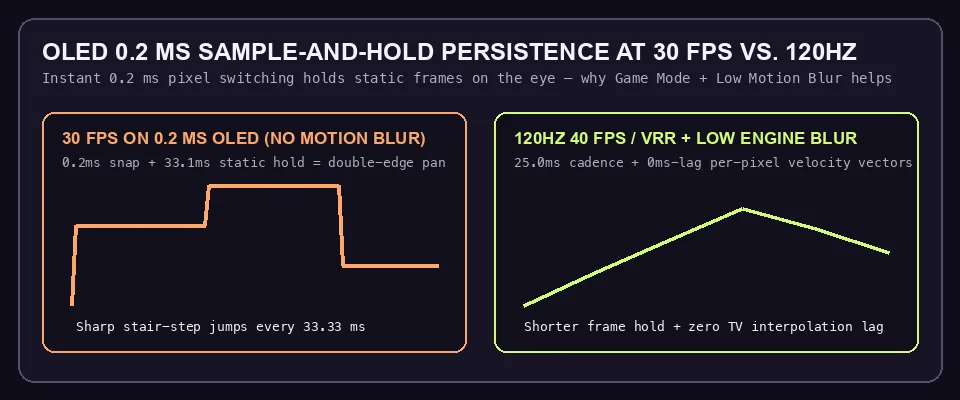
If you play a 30 FPS fidelity mode on an LG C/G-series WOLED or Samsung/Sony QD-OLED, instant 0.2 ms pixel response leaves every frame frozen on your eye for 33.1 ms with zero natural motion trail. Instead of turning on laggy TV interpolation, set in-game Per-Object / Camera Motion Blur to Low—shutter-matched game-engine blur uses true per-pixel velocity vectors with zero added input lag.
4. Watch Capture-Card & Remote-Play Refresh Mismatches
Streaming a 120Hz console container or variable 52 FPS VRR feed into a 60fps browser tab or USB capture card forces uneven frame drops every second. Whenever you record or use Remote Play on a 60Hz laptop or Chromebook, lock console output to an integer factor of 60 (30 FPS or 60 FPS) first.
More Browser Performance & Classic Game Checks
Explore our full 25-Game Browser Directory, test high-refresh arena movement in Quake 1 WebGL and Skate 3 project notes, or read our Call of Duty Browser Guide.
YOUR QUESTIONS
GTA 6 60 FPS, PS5 Pro, 120Hz & VRR FAQ
Clear engineering answers separating CPU simulation bottlenecks, 120Hz 40 FPS mathematics, PS5's 48Hz VRR floor, and TV motion-smoothing traps.
Why can dropping resolution alone fail to unlock 60 FPS in dense open-world console games?+
Lowering internal rendering resolution or using upscalers like PSSR and FSR reduces GPU pixel load, not CPU main-thread load. In dense open-world sandboxes with persistent traffic, physics, cloth, pedestrian AI schedules, and BVH ray-tracing structures, the 8-core Zen 2 CPU architecture shared across PS5, PS5 Pro, and Xbox Series X|S must still finish simulation inside 16.67 ms per frame to hold a locked 60 FPS.
Why does 40 FPS on a 120Hz TV feel halfway to 60 FPS mathematically?+
Frame rate (FPS) is non-linear, whereas frame time (milliseconds per frame) is linear. Jumping from 30 FPS (33.33 ms) to 60 FPS (16.67 ms) saves 16.67 ms total. Running 40 FPS inside a 120Hz container (where every frame displays for exactly 3 refreshes = 25.00 ms) saves 8.33 ms—literally 50% of the entire frame-time and input-latency improvement of 60 FPS while requiring 33% fewer CPU/GPU frames per second.
Why can't a standard 60Hz TV or 60fps capture stream output a clean 40 FPS mode?+
Because 60 divided by 40 equals 1.5, a fixed 60Hz panel would have to display odd frames for 16.67 ms (1 tick) and even frames for 33.33 ms (2 ticks), producing constant 3:2-style camera judder. Consoles require a verified 120Hz HDMI 2.1 display handshake so 120 ÷ 40 = 3 even ticks per frame.
What is the HDMI 2.1 VRR floor on PS5 vs. Xbox Series X?+
PlayStation 5's native system-level HDMI 2.1 VRR window operates from 48 Hz to 120 Hz. If an unlocked frame rate dips to 44 FPS without developer-implemented Low Framerate Compensation (LFC, which doubles frames to 88 Hz inside a 120Hz container), VRR disengages and screen stutter returns. Xbox Series X supports system-level LFC down to lower frame rates when output is set to 120Hz.
Should I turn on my TV's 'Motion Smoothing' to make 30 FPS look like 60 FPS?+
For live gameplay, almost always no. Television motion-interpolation modes must hold back rendered frames to guess intermediate pixels, adding roughly 40 ms to 90 ms of extra controller input lag while creating shimmering artifacts around crosshairs, subtitles, and HUD minimaps. Keep ALLM / Game Mode enabled instead.
Why does 30 FPS look choppier on an LG or Samsung OLED than on an older LED TV?+
Modern WOLED and QD-OLED pixels transition in ~0.2 milliseconds—roughly 20× faster than older LCD panels. Instead of natural pixel-transition blur softening each frame change, OLED holds a razor-sharp static frame on your eye for 33.1 ms before snapping instantaneously to the next frame, which human vision perceives as double-edged stutter during horizontal camera pans.
Methodology & Affiliation Notice
Frame times (33.33 ms, 25.00 ms, 16.67 ms), HDMI 2.1 VRR ranges (48–120 Hz), and display response estimates in this simulator reflect standard refresh-rate physics and display hardware specifications. Grand Theft Auto, GTA VI, PlayStation, and Xbox are trademarks of their respective owners; RadiantOptimizer.online is an independent browser tool and directory unaffiliated with Rockstar Games, Take-Two Interactive, Sony, or Microsoft.
COMMUNITY DISPLAY NOTES
TV, Monitor & Console Frame-Pacing Log (0)
Testing on an LG C-series OLED, Samsung QD-OLED, or 120Hz desktop monitor? Share your panel model and preferred VRR / motion setting below.